AI-Assisted Security Rule Creation

28.10.2026
Using SecureVisio AI Assistant to create and update security rules
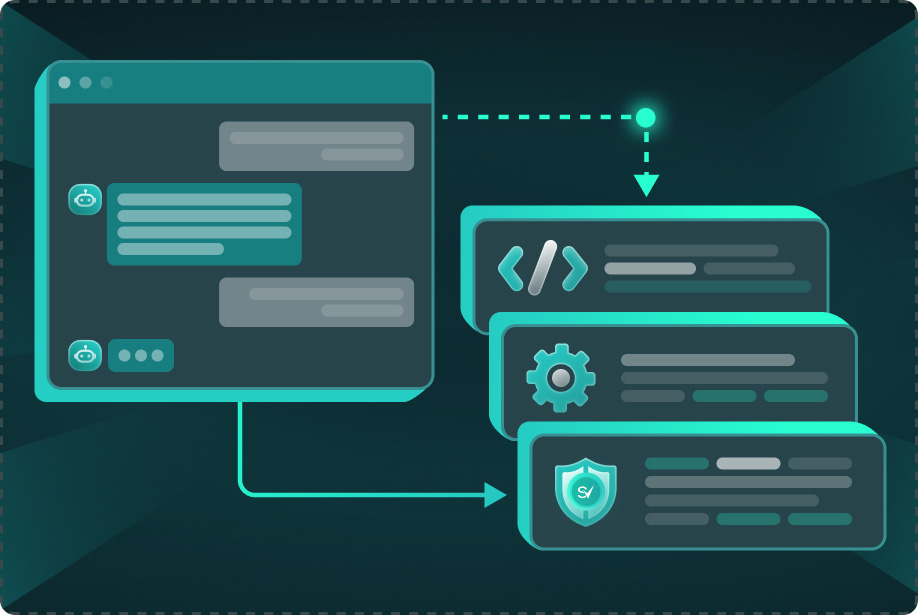
This article describes how SecureVisio can use AI prompts to support security rule creation and rule updates. The workflow is based on prompts created in the Security Rules context, where the AI Assistant can use rule properties, parsed field names, field descriptions, MITRE references and selected examples as context before generating rule logic.
The same approach can be used to create a new rule, update an existing rule, explain or extend rule scripts, and build detection logic based on sample frames, events, parser context or MITRE ATT&CK techniques.
Prepare prompts for rule generation
Security rule generation starts in the AI Prompts module. The prompt type should be set to Security Rules so that rule-specific context, schema information and insert actions are available in the prompt body.
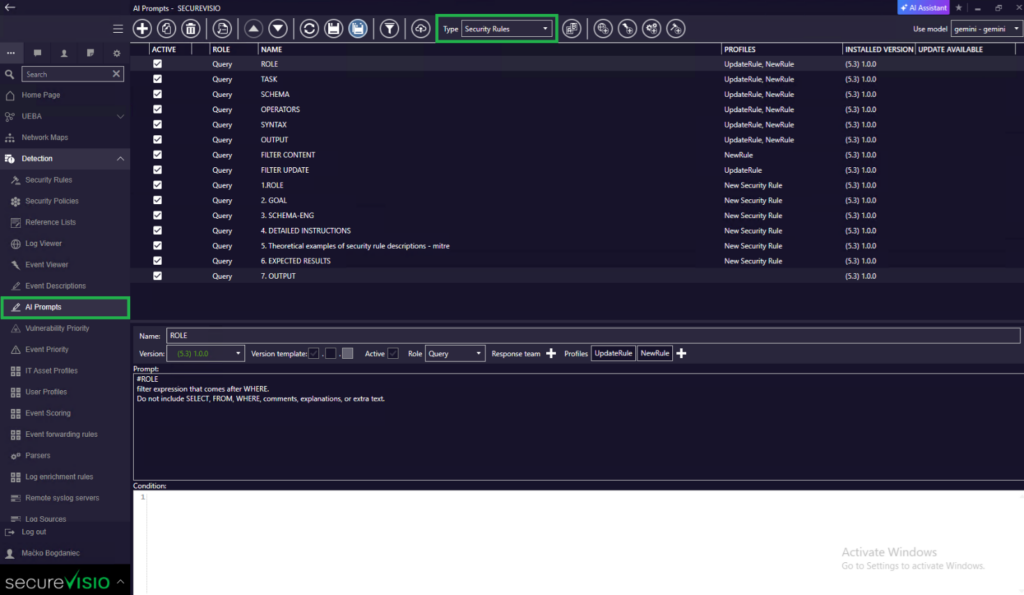
AI Prompts opened with the Security Rules type selected.
A rule-generation prompt should define the expected task clearly: whether AI should create a new rule, update an existing rule, explain current logic or generate a query/script that will be applied to the rule form.
Create profiles for rule creation and updates
Profiles organize prompts into reusable rule workflows. A practical configuration uses separate profiles for creating a new rule and for updating an existing rule. This makes the AI Assistant suggestions clearer and reduces the risk of applying the wrong result to the current rule context.
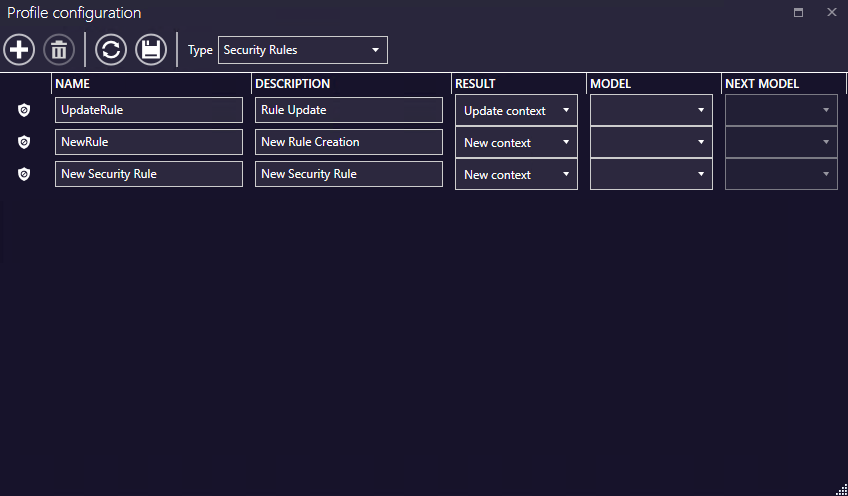
Security Rules profile configuration with Result, Model and Next Model columns.
| Profile setting | Purpose | |
| Name and Description | Identify the workflow shown to the operator, such as New Security Rule or UpdateRule. | |
| Result | Defines how the AI response affects the current rule context, for example creating a new context or updating the existing one. | |
| Model | Optionally selects the model used for prompts assigned to the profile. | |
| Next Model | Optionally selects a second model when the workflow uses a generated query passed to another model. | |
| Recommended split Use one profile for creating new security rules and a separate profile for updating existing rules. Rule creation and rule update workflows usually require different instructions and different result behavior. | ||
Use rule, schema and MITRE context
In the Security Rules context, prompts can reference several context groups. These references make the generated rule more precise because the AI Assistant can work with SecureVisio rule context, schema fields and MITRE technique names instead of relying only on free-text instructions.
| Context group | How it supports rule generation |
| ctx. | References the current security rule context, including rule properties and script where applicable. |
| fd. | Provides SecureVisio field descriptions that help the model understand what individual parsed fields mean. |
| fn. | Provides SecureVisio field names that can be used directly in generated rule logic. |
| mitre. | Provides MITRE references, including Enterprise ATT&CK techniques and internal techniques. |
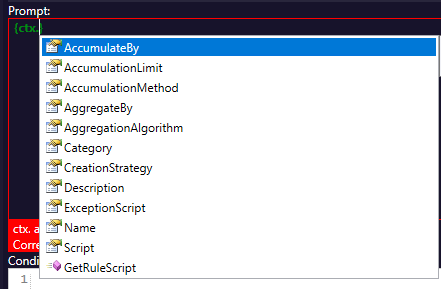
ctx. suggestions available in the Security Rules prompt editor.
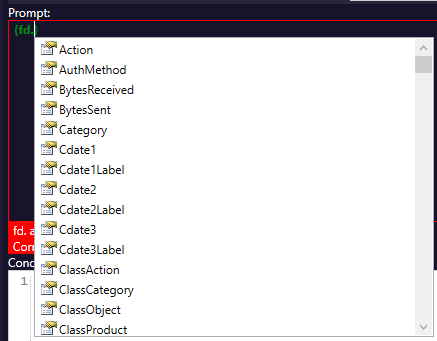
fd. suggestions with SecureVisio field descriptions.
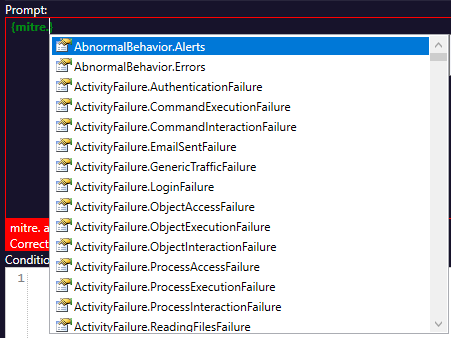
mitre. suggestions for MITRE-related rule context.
Add examples and existing context
Security rule prompts can be enriched with selected objects from SecureVisio. Insert actions allow the operator to add real examples and existing configuration elements without manually copying their full content into the prompt.
| Insert action | Typical use |
| Insert frame | Adds a sample frame that should trigger the generated or updated rule. |
| Insert event | Adds an example event as context for expected rule behavior. |
| Insert parser | Adds parser context when rule logic depends on specific parsed fields. |
| Insert rule script | Adds an existing rule script when AI should explain, update or extend it. |
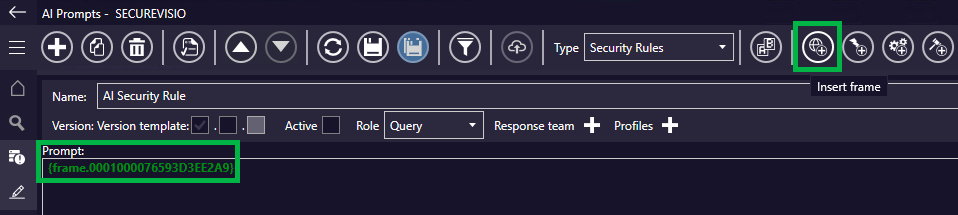
Insert frame action in the Security Rules prompt editor.
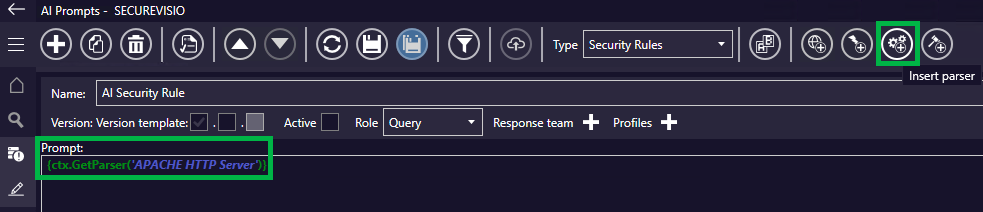
Insert parser action in the Security Rules prompt editor.

Insert security rule script action in the Security Rules prompt editor.
| Practical guidance Use examples that represent the intended detection scenario. A generated rule is more useful when the prompt includes a realistic frame, relevant field names and a clear expected output. |
Run the workflow from the security rule form
After the prompts and profiles are prepared, the operator can use the AI Assistant directly from a new or existing security rule. The assistant opens in the rule context, and the operator can select the profile that matches the required workflow.
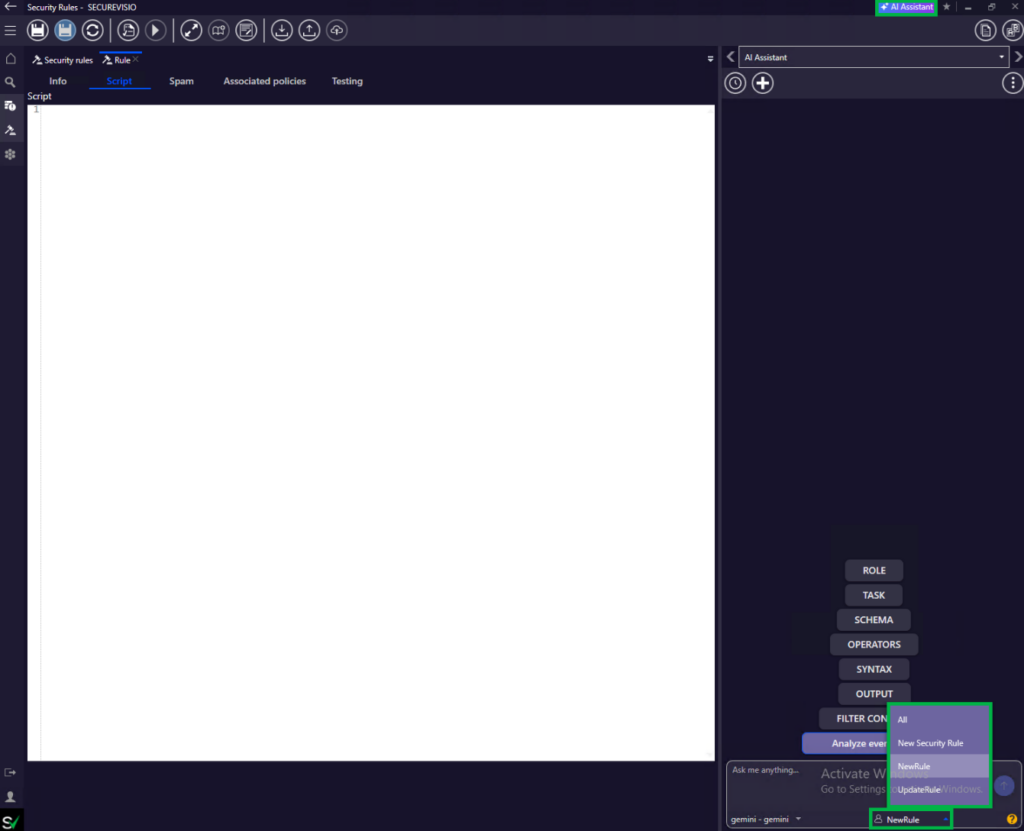
AI Assistant opened from a rule form with profile selection available at the bottom.
The operator selects the relevant profile, runs the prompt or prompt sequence, and reviews the response generated by the selected model. If prompt suggestions are not visible, the prompt panel can be opened from the assistant interface.
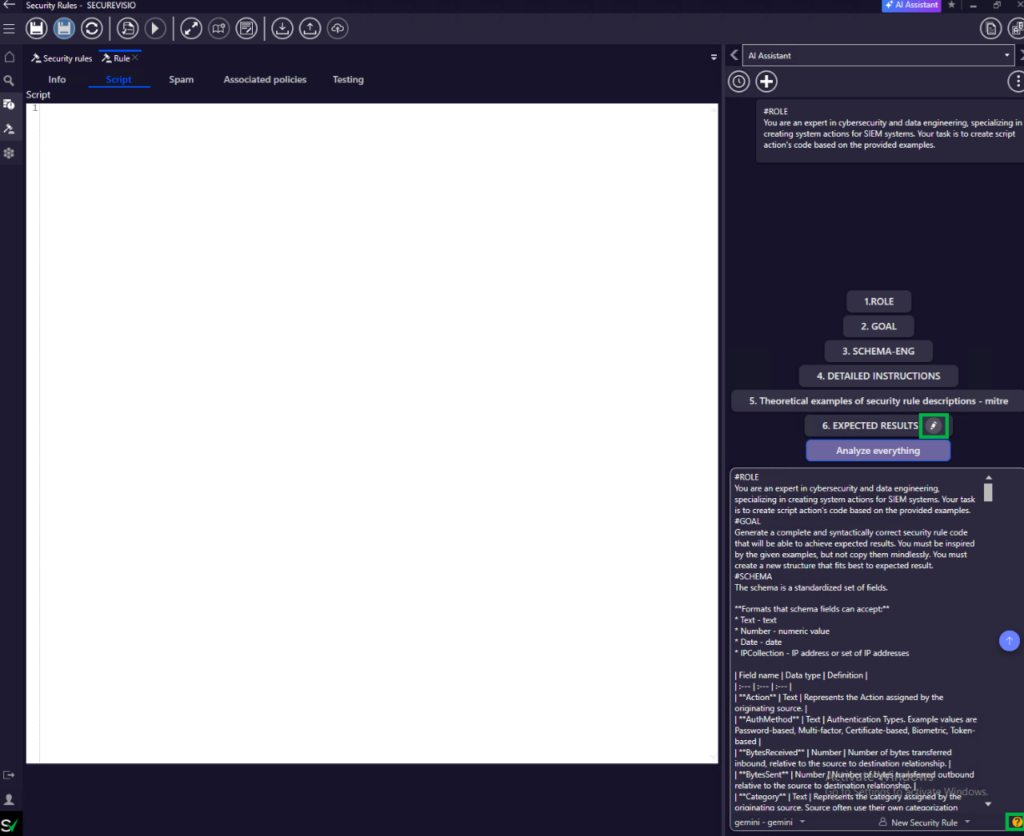
Prompt suggestion selected from the AI Assistant in a rule workflow.
Review and apply the generated rule script
When the configured prompt is executed, the AI Assistant can generate a rule script and place it into the rule editor according to the configured result behavior. For rule updates, the generated logic may be appended to or combined with the existing script, depending on the selected profile configuration.
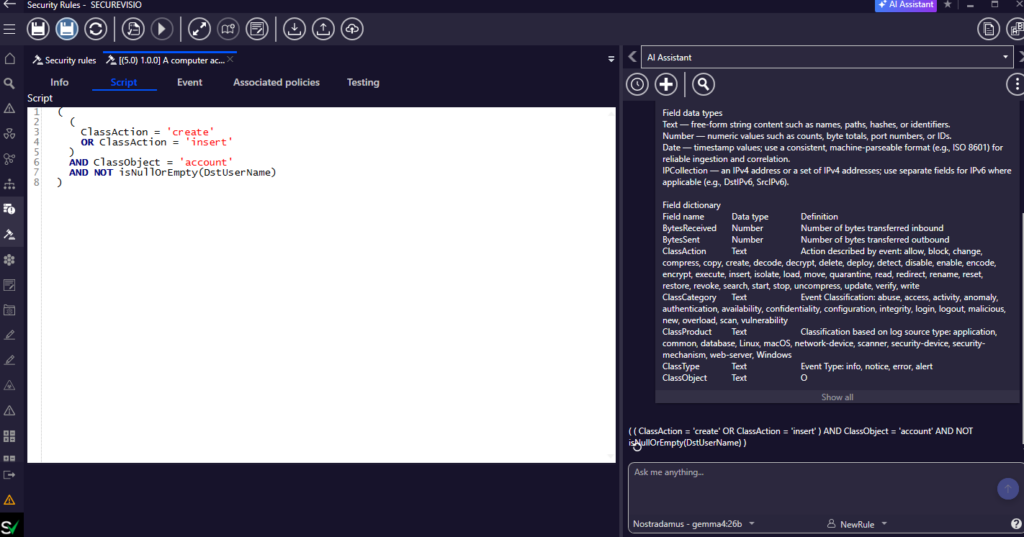
Generated rule script shown in the security rule editor after AI execution.
The generated script should be reviewed before operational use. The operator should verify the selected fields, conditions, classification values and expected rule behavior, and then test the rule against representative data before enabling it in production.
| Recommended workflow Keep AI-assisted rule workflows narrow and explicit. Define whether the result should create a new rule or update an existing one, provide representative examples, and verify the generated script before applying it to production detection logic. |