AI Assistant and Prompt Workflows

28.10.2026
Model integration, prompt creation, log analysis, security rule generation and parser creation
Introduction: AI model integration
SecureVisio can integrate the AI Assistant with multiple language model endpoints. The environment may use cloud-hosted models, local models, or a mixed configuration in which different workflows are routed to different models.
A model connection is based on the endpoint address, model name and authentication data when required. In practice, this means that the configuration requires the URL or IP address where the model is exposed, the model identifier used by the provider, and an API key if the selected model endpoint requires one.
After models are configured, the AI Prompt Editor controls how they are used. A default model can be selected globally, while prompt profiles can route selected workflows to a different model or pass a generated prompt from one model to another. This allows the same SecureVisio environment to use different models for log analysis, rule creation, parser generation or other operational tasks.
The AI Assistant works in the context of the area from which it is opened. When the operator works with a log, the assistant receives log-related context. When it is opened from a security rule, parser, incident or vulnerability, the available prompts, placeholders and actions change accordingly.
1. Creating and managing AI prompts
The AI Prompt Editor is used to create reusable AI instructions. A prompt can be assigned to a specific context, grouped into a profile, restricted to selected response teams, versioned, exported and reused from the AI Assistant.
| Access path: Desktop > Detection > AI Prompts |
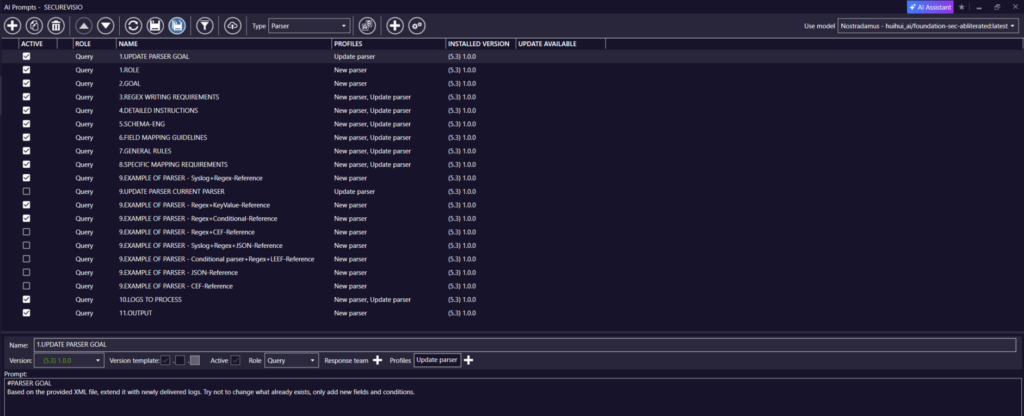
AI Prompts form with prompt list, type selector and prompt definition section.
1.1 Select the correct prompt context
Prompts are best created in the narrowest context that matches the task. The selected context determines which objects can be inserted into the prompt and where the prompt becomes available in the application.
| Prompt context | Typical use |
| Chat | General assistant conversations not tied to a specific operational record. |
| Log | Explanation, investigation and transformation of selected frames or logs. |
| Event | Analysis based on event-related frame and database context. |
| Incident | Incident-oriented analysis using incident context, related frame data and database context. |
| Vulnerability | Vulnerability-focused assistance using vulnerability context, CVSS data and software information. |
| Security rules | Creation or modification of rule scripts using rule context, schema fields and MITRE references. |
| Parser | Creation or update of parsers using sample logs and optional reference parser definitions. |
| Script action | Use of selected system action scripts through ctx.GetScript(). |
| PowerShell Connector | Preparation of integration workflows that actively retrieve logs through LogForwarder. |
1.2 Create a prompt
1. Open Desktop > Detection > AI Prompts.
2. Select the Type that matches the workflow, for example Log, Parser or Security Rules.
3. Click Add to create a prompt, or Copy to base a new prompt on an existing one.
4. Enter a unique Name within the selected Type.
5. Set Active when the prompt is intended to be visible in the AI Assistant.
6. Select the Role: Introduction for setup instructions or Query for operator-facing prompts.
7. Optionally assign Response team visibility.
8. Assign one or more Profiles to make the prompt available in a grouped workflow.
9. Write the prompt body, add contextual placeholders or inserted objects, and save the configuration.

Prompt definition controls for role, response team and profile assignment.
1.3 Use roles, profiles and result behavior
Introduction prompts set stable behavior for the beginning of a conversation. Query prompts are the reusable actions selected by the operator. When a new conversation starts and a Query prompt is selected, related Introduction prompts are sent first and then the selected Query prompt is executed.
Profiles organize prompts into workflow groups. They also define how the AI response is applied to the current context and, if needed, which model is used for the workflow.
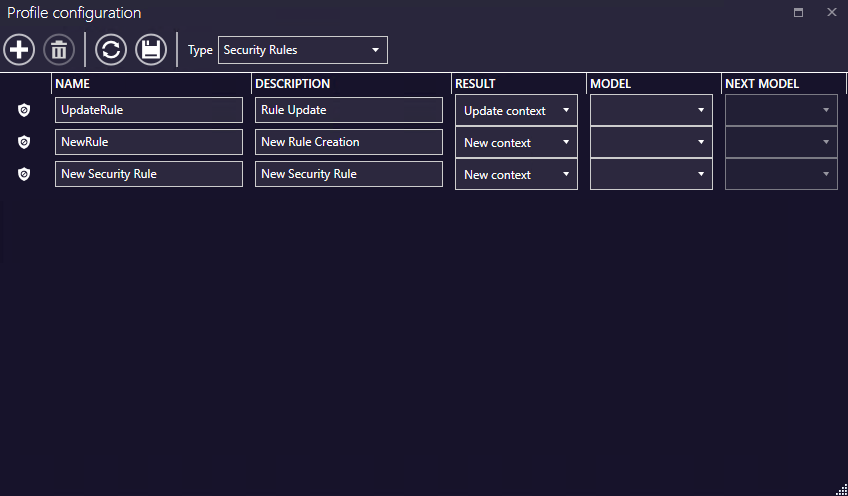
Profile configuration with Result, Model and Next Model columns.
| Result | Effect |
| None | The AI response is returned without changing the current context. |
| New context | The generated content replaces the current script or context where this behavior is supported. |
| Update context | The generated script is added to the current script in the form (current script) AND (new script), where supported. |
| New query | One model generates a new prompt that is passed to the model selected as Next Model. |
1.4 Use contextual placeholders and conditions
The prompt body can include contextual placeholders. After opening a brace, the editor displays IntelliSense suggestions for objects available in the selected prompt context. When the prompt is executed, SecureVisio expands the compact expression and sends the resulting context to the AI Assistant.
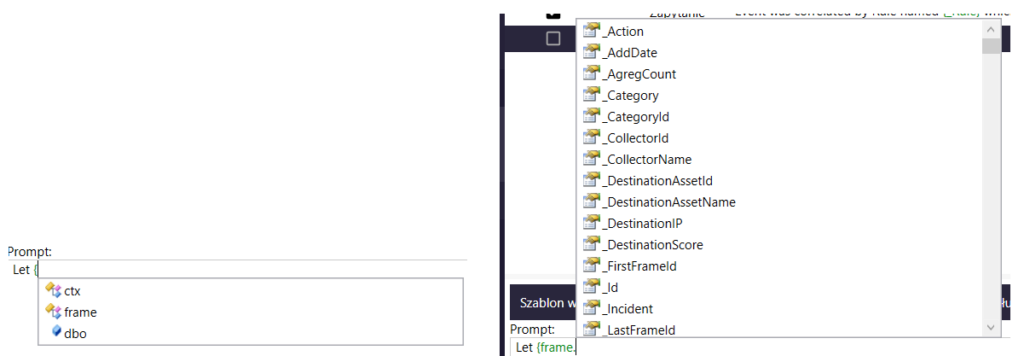
IntelliSense suggestions for prompt context placeholders.
| Object | Use |
| ctx. | Main object for the selected context, such as a parser, rule, incident or vulnerability context. |
| frame. | Frame data when the selected context includes a log or event frame. |
| dbo. | Database context where available. |
| fd. | Field descriptions in the Security Rules context. |
| fn. | Field names in the Security Rules context. |
| mitre. | MITRE references available in the Security Rules context. |
Prompt conditions can be used to show a prompt only when it applies to the selected record. Literal braces and square brackets can be escaped with a backslash. For regular expressions that use these characters, @regexp can be used with the expression placed in single quotes.
\{ \} \[ \]
@regexp ‘^[A-Za-z0-9\.\-_]+$’
IsNotNull(_UserId) AND IsNotNullOrEmpty(SrcUserName)