AI-Assisted Parser Creation

28.10.2026
Using SecureVisio AI Assistant to create and update parsers
This article describes how SecureVisio can use AI prompts to support parser creation and parser updates. The workflow is based on predefined producer prompts or custom prompts prepared by the user. The AI Assistant can receive selected log frames, existing parser definitions and additional parser-writing guidance as context, and then return a parser structure that can be reviewed and applied in SecureVisio.
1. Prepare prompts for parser generation
Parser generation starts in the AI Prompts module. The prompt type should be set to Parser so that parser-specific context and insert actions are available. Prompts can define the role of the AI Assistant, the expected parser goal, mapping rules, output format and any additional know-how such as SecureVisio schema guidance.
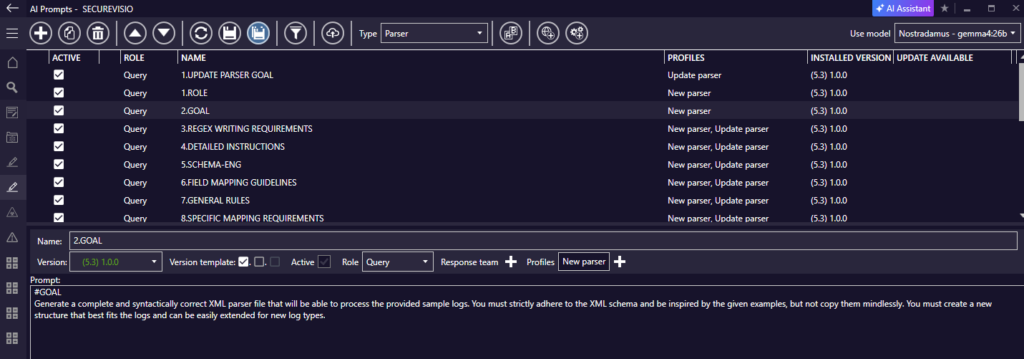
AI Prompts opened with parser-related prompt templates.
The most useful toolbar actions for parser-oriented prompts are Insert frame and Insert parser. They make it possible to build prompts from real log samples and existing parser definitions without pasting their full content manually into the prompt body.
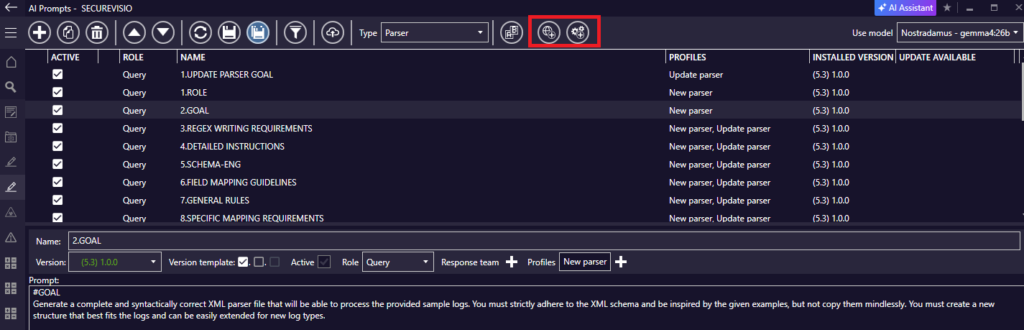
Toolbar actions for inserting a frame or parser into a prompt.
2. Add log samples with Insert frame
Insert frame opens the log viewer. The operator can search for a representative log and add it to the prompt by selecting the required row. The prompt stores a compact frame reference, while the AI Assistant receives the expanded log content during execution.
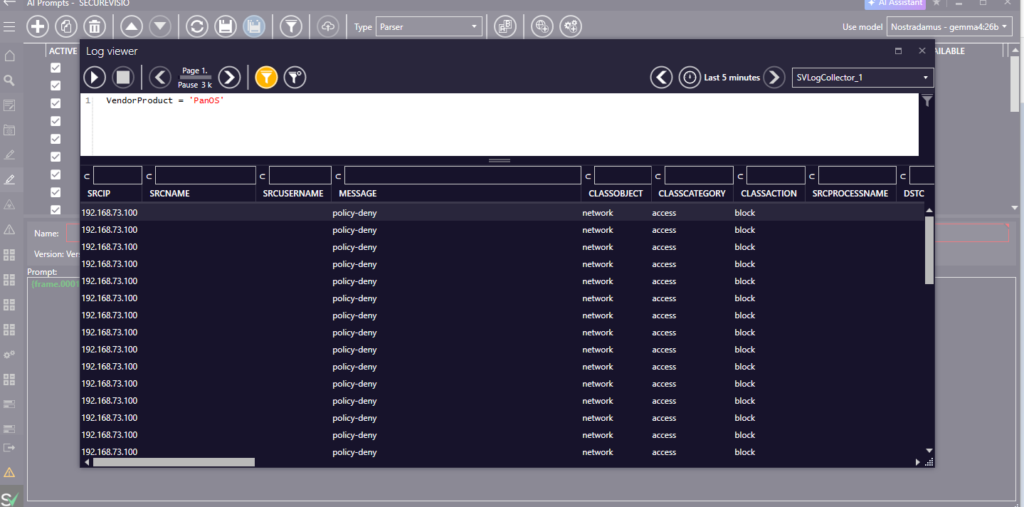
Log browser used to choose a representative frame for parser generation.
{frame.ID}
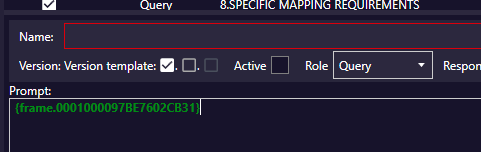
Example of a contextual frame reference added to the prompt body.
| Practical guidance Use representative log samples. The parser generated by AI is only as useful as the examples and mapping expectations provided in the prompt sequence. |
3. Use existing parsers as reference
Insert parser opens a parser selection window. A selected parser is added to the prompt as a contextual reference. This allows the AI Assistant to follow an existing parser style or use it as a reference when generating a new parser or updating an existing one.
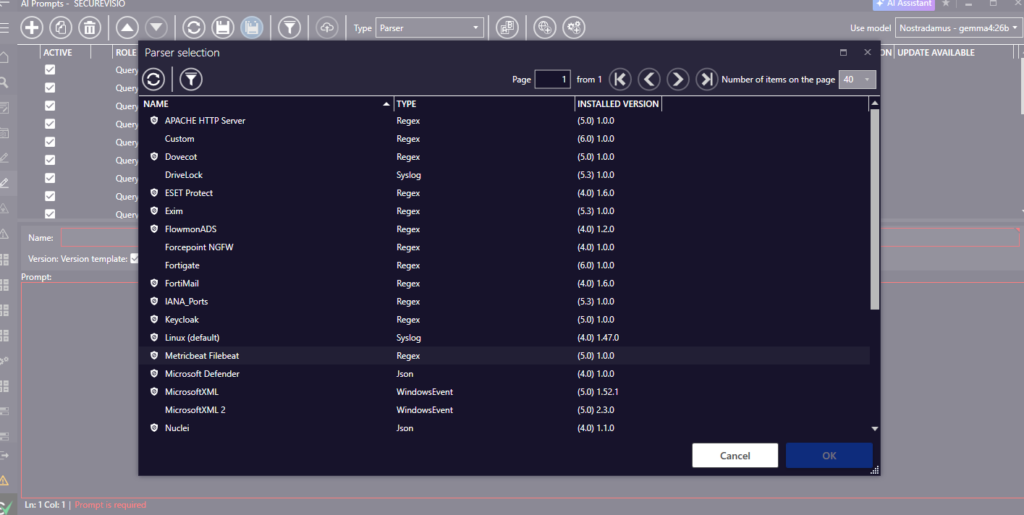
Parser selection window used to insert an existing parser as context.
{ctx.GetParser(‘Parser Name’)}
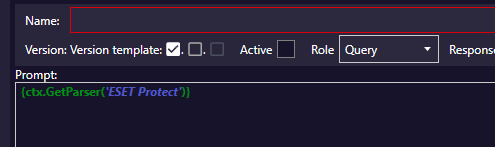
Example parser reference inserted into a prompt.
4. Organize parser workflows with profiles and models
Profiles group prompt sequences. A parser workflow can contain several prompts, for example goal definition, schema guidance, mapping requirements, examples and output instructions. The Profile configuration window is used to create profiles and assign result behavior, model and, when needed, the next model.
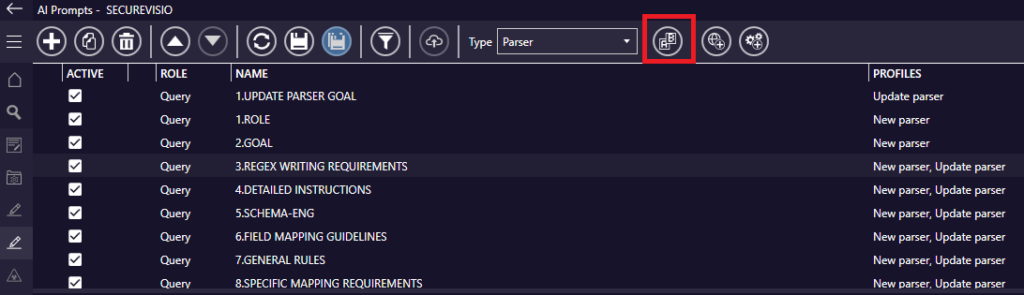
Profile configuration action available in the parser prompt list.
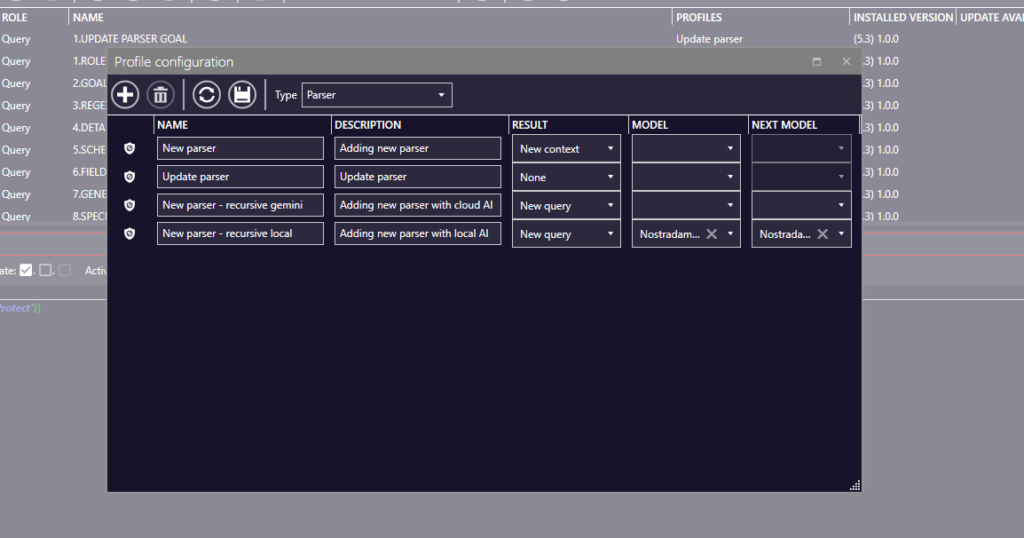
Parser profile configuration with result, model and next model settings.
For more complex scenarios, the workflow can use a recursive query. One model can prepare the target prompt and pass it to another model that generates the final parser output. This can be used to improve the quality and structure of generated parser definitions.
5. Generate or update a parser from the Parsers module
To use the prepared workflow, open Detection > Parsers and start the AI Assistant from the parser editor. The assistant panel displays available prompt suggestions. The operator can select the model and profile at the bottom of the interface so that only the relevant parser workflow is executed.
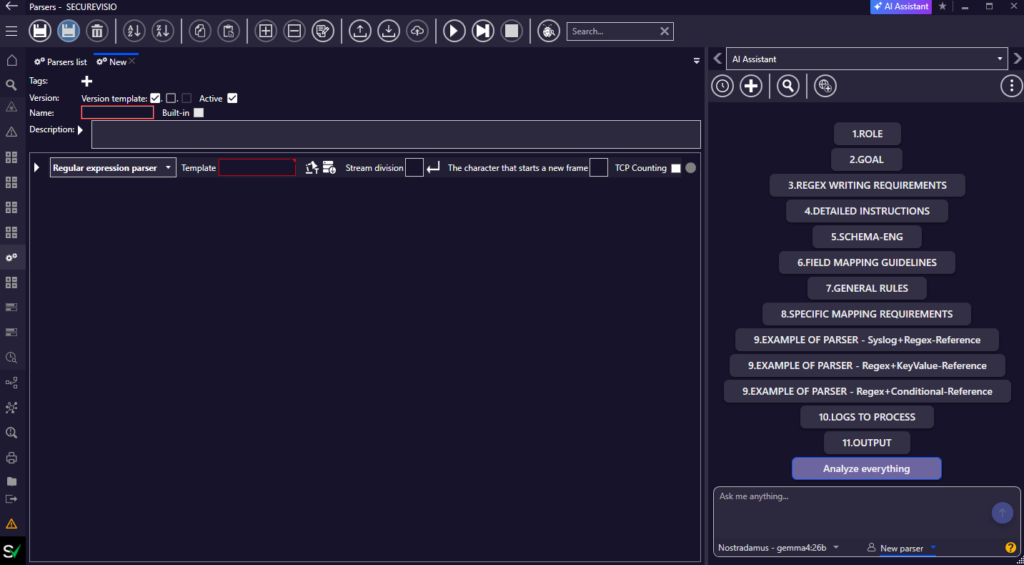
AI Assistant opened in the parser editor with parser prompt suggestions.
Sample frames can also be added directly from this level by using Insert frame. The operator may use predefined prompts, select the prepared parser workflow, or enter an ad hoc instruction in the chat field.
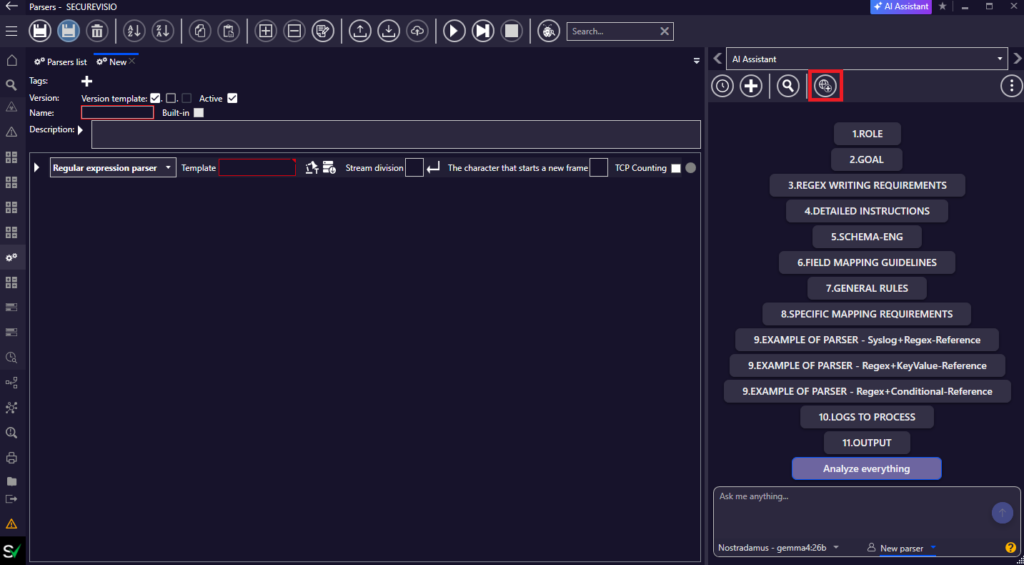
Parser editor with the AI Assistant and prompt sequence available on the right.
Before sending logs to the model, an anonymization dictionary can be defined. This allows selected values from log samples to be anonymized in the data passed to the AI model.
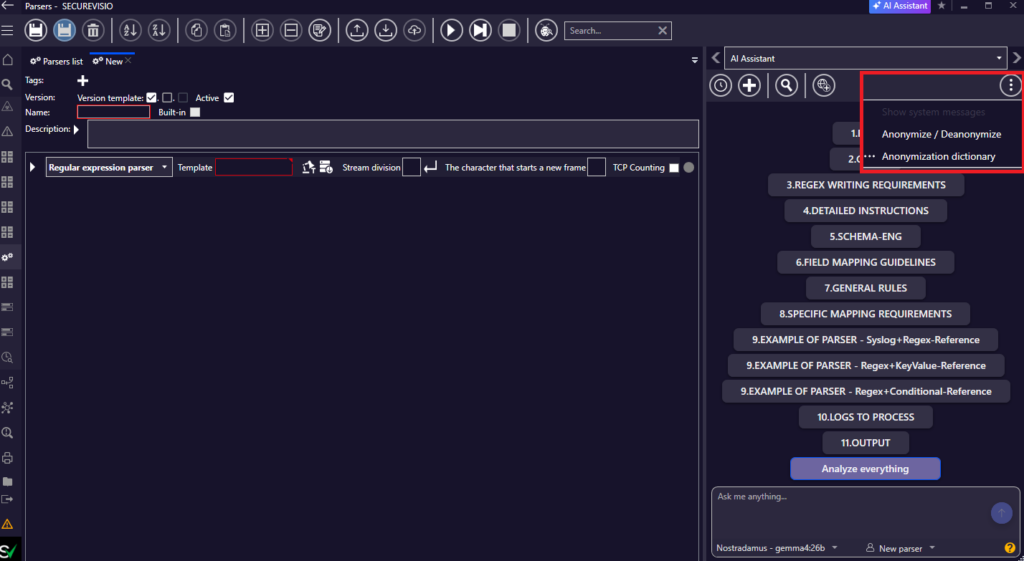
Action for configuring anonymization before using log samples in the AI workflow.
6. Review and apply generated parser output
After the prompt sequence and log samples are selected, the query can be executed. The AI Assistant returns parser output as an XML file. This XML file represents the SecureVisio parser structure and can be used to replace or update the parser configuration after review.
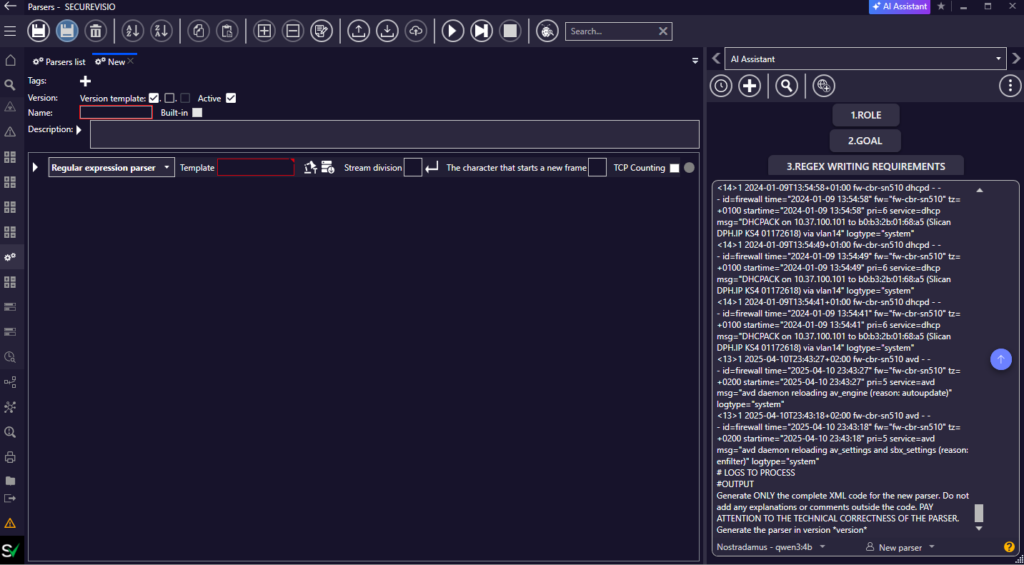
Generated parser content returned by the AI Assistant.
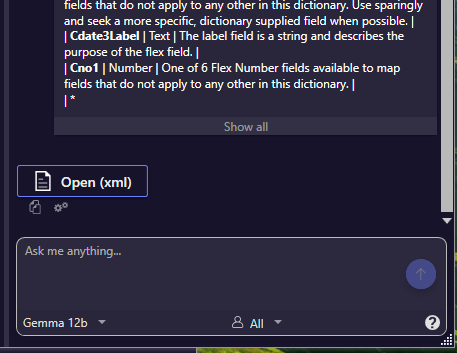
Open XML action for the generated parser output.
The XML format does not limit the parsing method itself. It is the SecureVisio parser structure. Supported parser approaches include, among others, key=value, regex, CEF and LEEF. The generated parser should be reviewed against the selected log samples before it replaces an existing configuration.
| Review before applying The generated XML should be treated as a proposed parser configuration. Review the mapping and parsing logic against selected log samples before replacing an existing parser. |